Boosting Developer Productivity: The Secret Sauce of Bookmarks + Alfred
Table of Contents
When I started my journey at Atlassian, I quickly realised that to make the most of this incredible opportunity, I needed to step up my productivity game.
In this series of blog posts on developer productivity, I’ll share some of the small yet powerful techniques I’ve discovered and implemented to enhance my effectiveness as a developer.
Let’s talk about Bookmarks
Yes, bookmarks—those links we save with the best intentions to check later, but often forget. Or the ones we save for daily use, yet never seem to open directly, navigating through multiple clicks and screens instead!
It might sound basic, but leveraging bookmarks effectively has proven to be a game-changer for me. The key has been a twofold approach: first, refining how I organise bookmarks, and second, utilising a powerful tool that enables full-text search across all my saved links, making them instantly accessible from anywhere on my computer.
Meet Alfred, your new friend!
When I first heard about Alfred during my onboarding at Atlassian, I chuckled, picturing Batman’s butler ready to tidy up my digital mess. However, after a quick google search into its capabilities, I was hooked. Alfred offers a robust version free of charge, which includes most of the killer features that caught my eye.

What’s the Big Deal?
The magic isn’t in the bookmarks themselves, nor just in being able to search them swiftly. The real game changer is using these tools systematically. Consider a typical scenario where you need to manage documentation from various projects and inputs from different colleagues. By applying a systematic approach, you’d identify each project and the colleagues who provide documentation, then categorise and save these into separate buckets.
You might think, “But that’s just regular bookmarking!” True, but with Alfred, you can employ full-text search. This means we need a smarter naming convention—like prefixing with the project name to maintain consistency.
However, it goes beyond that; you also need to consider all the ways you’ll access these pages in the future (“information access patterns”). That’s the secret sauce: the combination of systemic thinking + Alfred.
For example:
When applying this approach to the repository for “Project A,” you might store:
- [<Project A> PR all] –> The view of all the Pull requests for Project A
- [<Project A> my PR] –> Same view but filtered by author = <ME>
- [<Project A> my merged PR] –> Filtered by author = <ME>, and status = MERGED
- [<Project A> PR review] –> The view of all the Pull requests for Project A, filtered by “I’m reviewing”
Now, let’s say you need to review the contributions of three colleagues, here’s an example with one of them:
- [<Colleague 1> PR all] –> The view of all PRs for the Project A, filtered by author = <Colleague 1>, and status = ALL
Also, it’s crucial to monitor the build status, right?
- [<Project A> pipeline] –> The view of all the pipelines for Project A
- [<Project A> my pipeline] –> Same view but filtered by author = <ME>
You’ve got the idea! Determine which pages you frequently access, establish a strategic naming convention for your bookmarks, and start experiencing the immediate benefits of boosted productivity!
Enabling Bookmark Features in Alfred
Here’s how to enable the bookmarks feature in Alfred and configure it to your preference:
- Open Alfred’s Preferences: Begin by navigating to Alfred’s preferences. You can do this by activating Alfred with the default shortcut (Cmd + Space) and typing “Alfred preferences” into the search bar.
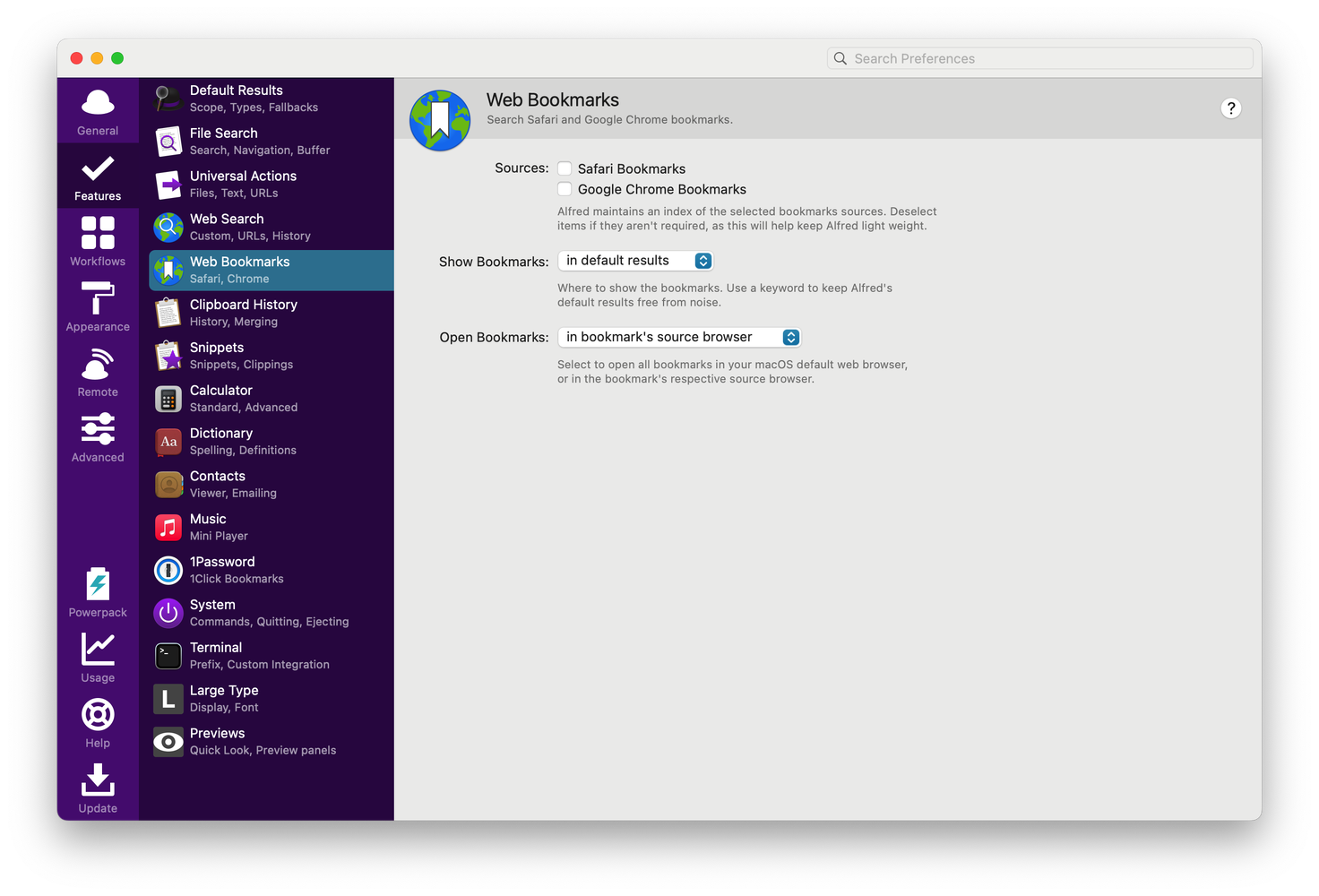
- Navigate to Features: Once in the preferences, look for the ‘Features’ section and select ‘Web Bookmarks’.
- Choose Your Display Option: You have two main options for how bookmarks will show up in your search results:
Show bookmarks in default results: With this option enabled, you can simply start typing the name of the bookmark right after activating the search bar, and the results will include any matching bookmarks.
Show bookmarks via keyword: This setting requires you to type a predefined keyword before the name of the bookmark. For example, if your keyword is ‘bm’, you would type ‘bm [bookmark name]’ to search for a specific bookmark.
Beyond Bookmarks: Web Search with Alfred
Alfred isn’t just great for managing bookmarks—it also enhances your efficiency with powerful web search capabilities directly from the command bar.
Setting Up Web Searches
- Open Alfred’s Preferences.
- Navigate to Web Search: Once in the preferences, look for the ‘Features’ section and select ‘Web Search’. Here, you’ll encounter a variety of predefined search options ready for use.
- Customising Search Options: Within the Web Search settings, you can tailor the searches to fit your needs. For efficiency, you might want to deactivate search options that you seldom use, to keep your search environment uncluttered.
Personal Recommendation: For those searches you perform frequently, consider simplifying the activation keywords. For example, changing “google” to “go” or “youtube” to “yt” can significantly speed up your search process.
Creating Custom Web Searches with Alfred
Enhance your daily productivity by integrating custom web searches into your workflow with Alfred’s flexible features. This can be a game-changer for tasks you perform frequently that don’t necessarily warrant a bookmark, such as checking various Jira tickets throughout the day, where each query is unique.
Example 1: Searching Jira tickets
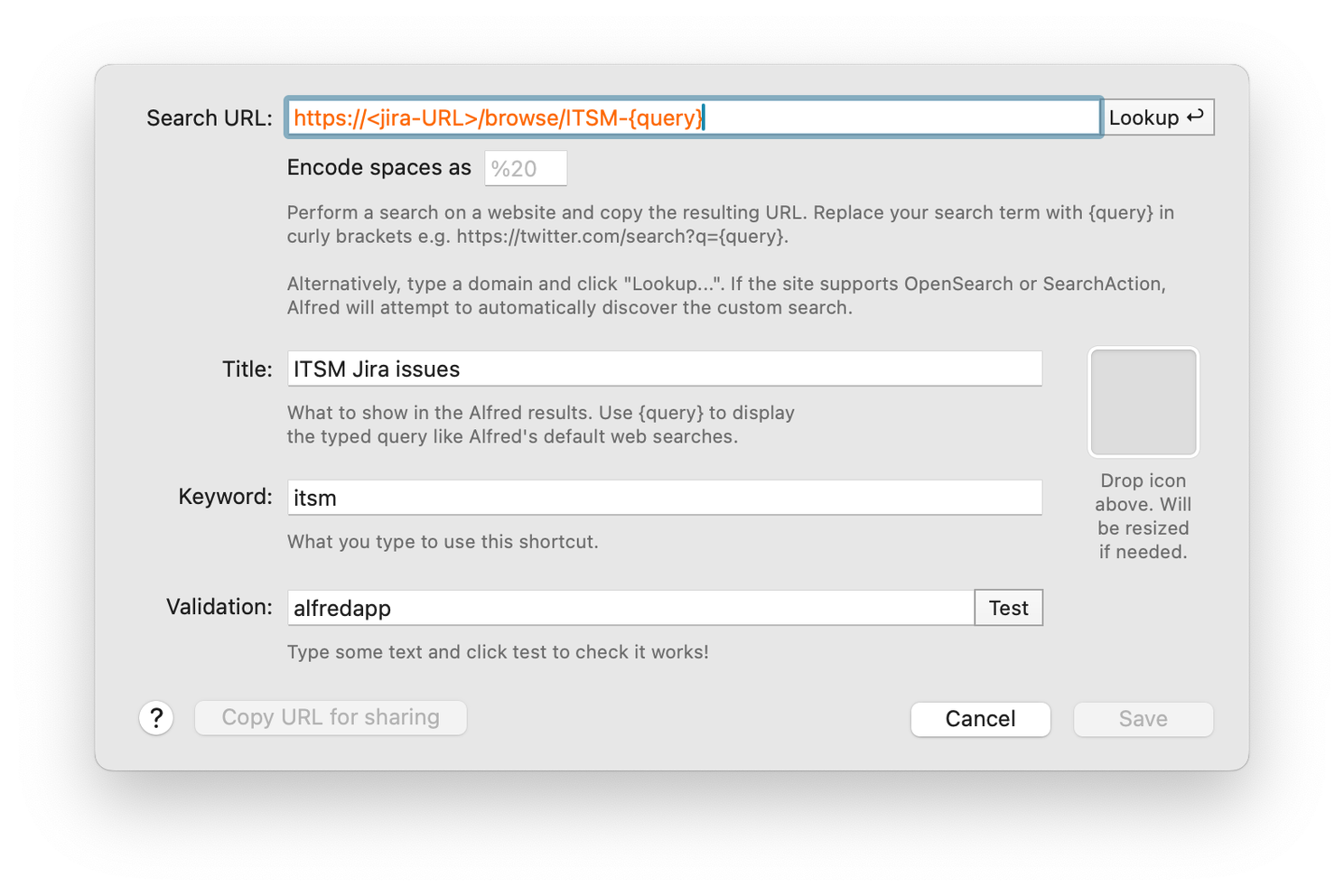
Imagine you’re working on “Project B”, where the ticket prefix is “ITSM” and tickets follow a “prefix + number” format. You can set up a custom web search in Alfred to access these tickets directly:
- Search URL:
https://<Your Jira URL>/browse/ITSM-{query} - Keyword: ITSM
Now, simply open Alfred’s search bar (Cmd + space), type “ITSM” followed by the ticket number, e.g., “2034”. This command will navigate directly to the ticket ITSM-2034, opening it in a new browser tab.
Example 2: Searching for Specific Repository Branches
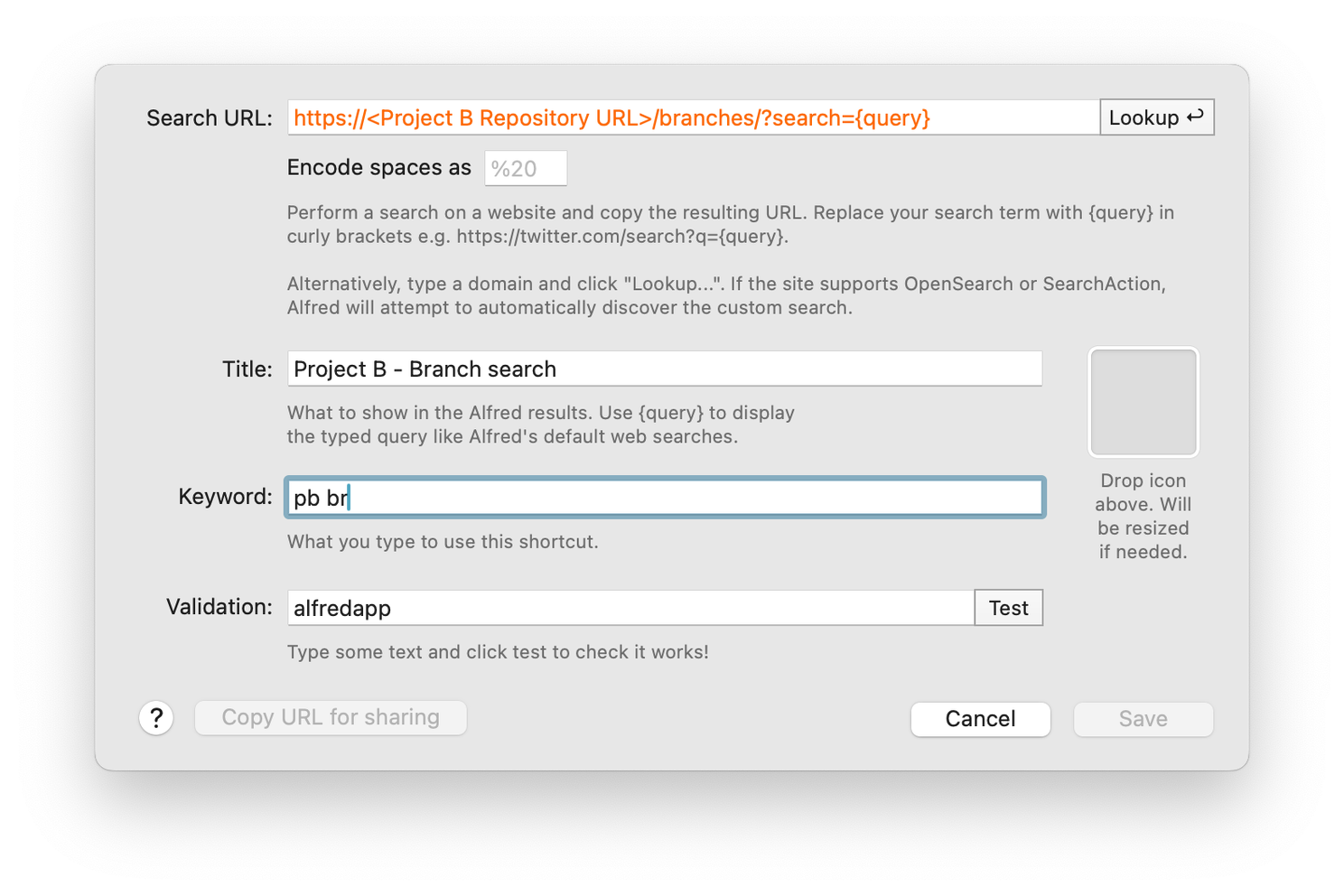
Another practical application, suppose you need to find branches in the repository of ‘Project B’ that include specific text in their names.
- Search URL:
https://<Project B Repository URL>/branches/?search={query} - Keyword: PB br (where “PB” stands for Project B in this example).
For instance, typing “PB br bugfix” in Alfred will quickly search for all branches of Project B that contain the word “bugfix”.
Keeping It All Together
Integrating Alfred into your daily routine goes beyond setting up features—it’s about creating a seamless productivity flow. Here’s how to keep everything cohesive:
- Systemic approach: Group your bookmarks and searches to reflect your project’s structure or daily tasks. This helps in navigating through them quickly and efficiently.
- Maintain Consistency: Use uniform naming conventions for easy recall and to reduce effort in finding what you need.
- Regular Updates: As your projects evolve, so should your Alfred setup. Regularly update and prune your bookmarks and searches to keep them relevant.
- Evaluate and Adapt: Monitor how the setup affects your workflow and make adjustments to improve efficiency.
By following these steps, Alfred becomes more than just a tool; it transforms into an indispensable assistant that significantly enhances your productivity.
I’d love to hear from you! How are you using Alfred to boost your productivity? Share your tips and tricks in the comments below—I’m always looking for new and innovative ways to use this powerful tool!